
Screen and accessibility settings (Android version)
- Carolina Grandia Soler
- Nov 12, 2022
- 2 min read

Hi! I'm Carolina and I'm here with a new CaroAlAparato post. As we promised, today we're going to explain to you some screen and accessibility settings for Android: we will learn how to change your phone's wallpaper, adjust text size, and brightness and how to activate TalkBack.

How do I change the text size?
Lots of people complain about their phone's screen and text size, and while I believe that their vision might be the problem, I'm still going to explain to you how to adjust it to your liking:
Go to your 'Settings' app.
Scroll down until you find 'Display', and tap on that option.

Tap on 'Text size'.

A slidebar will come up, and slide until you like the text size. I know the image's text is in Spanish, but it doesn't matter.

How do I adjust its brightness?
To adjust your phone's brightness:
Go to 'Settings'.
Scroll down until you find the 'Display' option. Tap on that.

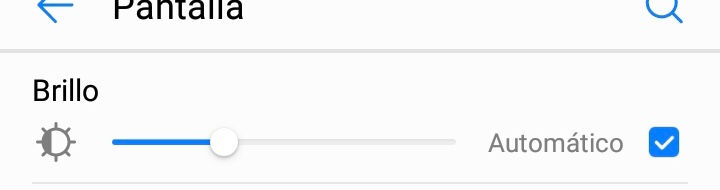
In the top part of your screen, you will be able to adjust the brightness.
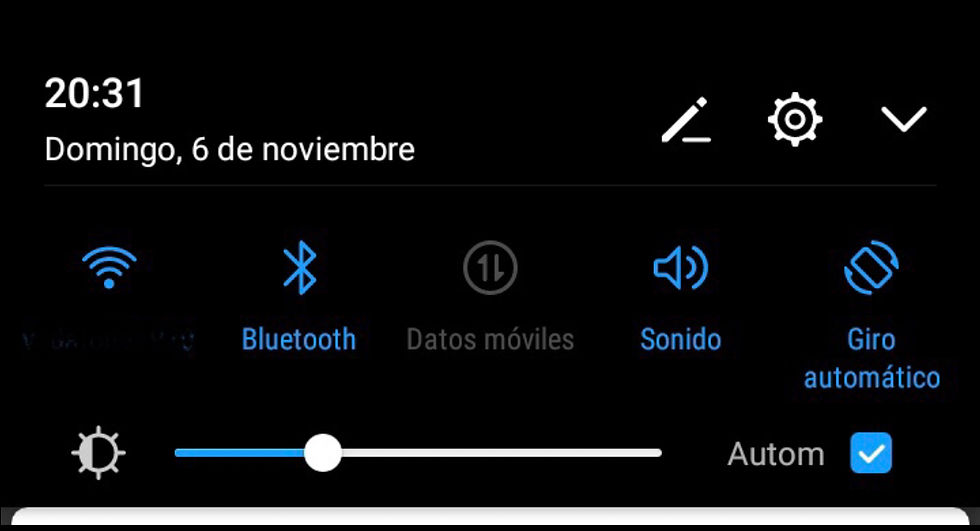
You will also be able to adjust it directly if you slide from the top to the bottom of your screen, then a menu like this will come up. You just have to slide the bar until the brightness is of your liking.
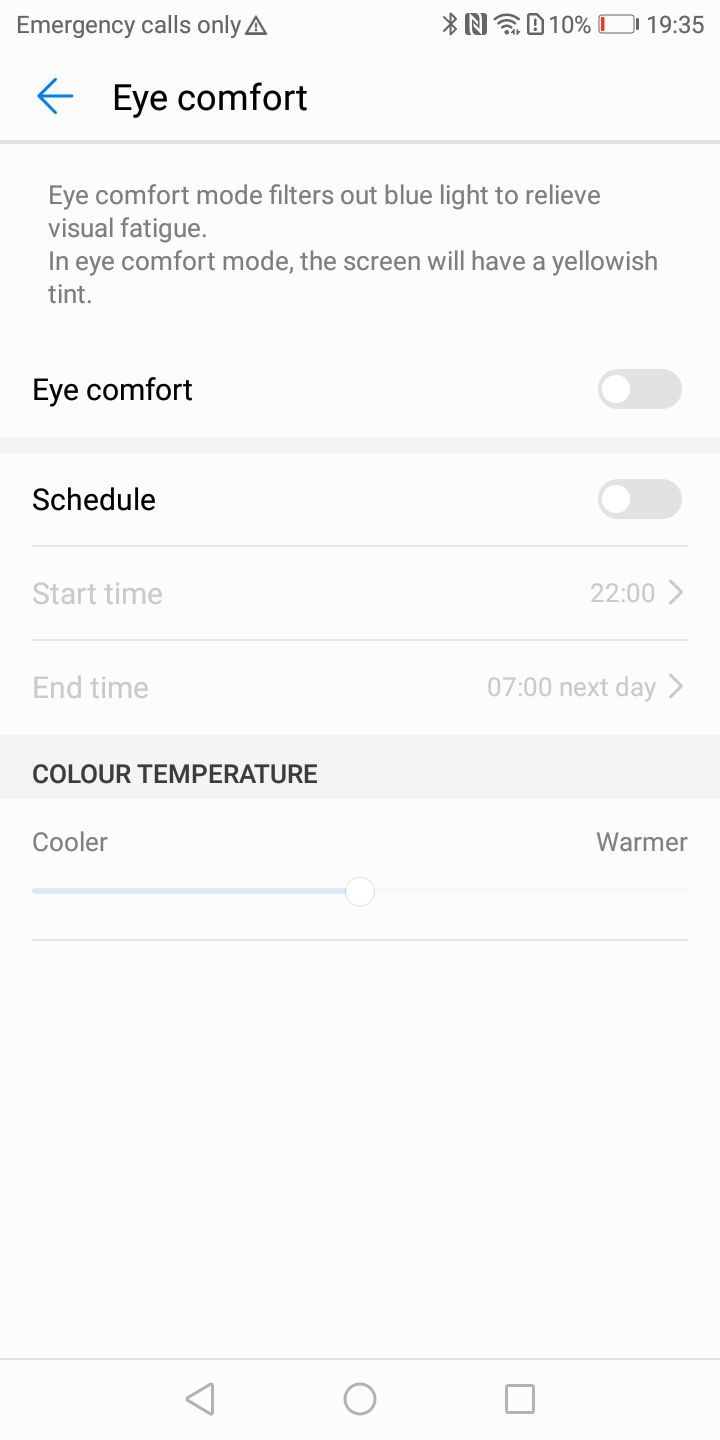
As an extra, I will say that you can activate 'Eye comfort' (which filters out blue light to relieve visual fatigue) if you activate the 'Eye comfort' mode in the 'Display' section.
How do I change my wallpaper?
I don't know about you guys, but I love customizing my phone! Setting aesthetic wallpapers, changing app's icons, decorating my phone case, etc. Giving it a personal touch. If you also enjoy customization (or simply dislike Android's wallpapers) you can change your phone wallpaper like this:
Go to 'Settings'.
Scroll down until you find the 'Display' option and press on it.

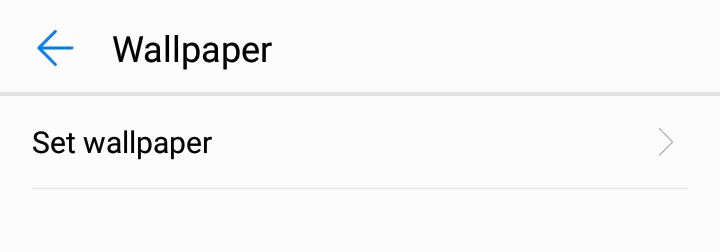
Tap 'Wallpaper' - 'Set Wallpaper'.

Choose a photo and press on the tick that will appear in the top right corner of your screen.
How do I activate 'TalkBack'?
The TalkBack option reads aloud the items on your screen. You will simply have to tap twice on the item you want to read to activate it. In this section (when tapping on the settings symbol in the top right corner), you can choose the voice, speed, etc. Sadly, some people find this option unnecessary or annoying, but nothing further from reality because it helps lots of disabled people. To activate it:
Go to 'Settings'.
Scroll down until you find 'Smart Assistance'.

Now tap on 'Accessibility' - 'TalkBack'.
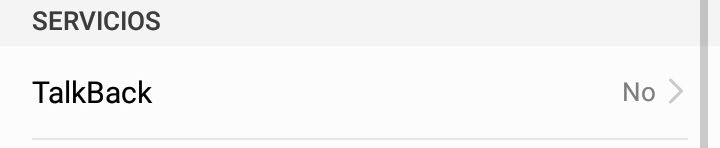
Simply press on the 'TalkBack' option to activate it.
After activating it, you will be greeted with a tutorial, watch it to learn how to use this setting correctly.
And tadaaa! That's all for today's post, I hope you guys found it useful, and don't hesitate on commenting any queries or suggestions, as they will be answered in the comments! I hope you guys have a nice week,
See you!
Carolina Grandía Soler - 06/11/22


Comments