
Screen and accessibility settings (iPhone version)
- Carolina Grandia Soler
- Oct 20, 2022
- 3 min read

Hi! I'm Carolina and I'm back again with another CaroAlAparato post. Today we will be focusing on iPhones (sorry Android users, you'll have your post soon!) I will be explaining various screen and accessibility settings: we'll learn how to zoom, change your wallpaper, choose dark/light appearance, adjust your text's size, activate VoiceOver, and adjust your screen brightness.

How do I activate the zoom option on my iPhone?
Zooming is simply magnifying your screen's display, the iPhone option allows you to:
-Double-tap three fingers to zoom.
-Drag three fingers to move around the screen.
-Double-tap three fingers and drag to change zoom.
To activate it:
Go to your Settings app.

Scroll down until you find 'Accessibility'. Tap on that option.

In that section, tap 'Zoom'.

Drag the white circle to the right to activate it (it will turn green when activated).
How do I change the text size?
Lots of people complain about their phone's screen and text size, and while I believe that their vision might be the problem hahaha, I'm still going to explain to you how to adjust it to your liking:
Go to the 'Settings app.
Scroll down until you find 'Accessibility'. Tap on that option.

In that section, tap 'Display and text size'.

Here you can make your text bold, adjust the screen's contrast, change the colors, etc.
Tap on 'Larger Text', in the bottom part of your screen a bar with different text sizes will come up. Slide it until you find your ideal text size. If you still find those sizes small, activate the 'Larger Accessibility Sizes' option and keep adjusting the size.
How do I change my phone's display? And, how do I adjust its brightness?
Changing your phone's display to dark/light mode will make it darker or lighter (depending on which one you choose).
To change it:
Go to the 'Settings app.
Scroll down until you find 'Display and brightness.

Both options will come up on the screen, choose the one that you prefer. You can also make it automatic, so the display changes according to whatever schedule you choose.
On this screen, you can also change your phone's brightness, in the 'brightness' section slide the bar until you conform with the brightness. There is also an easier way, scroll from the top to the bottom of your screen until a menu with various options comes up.
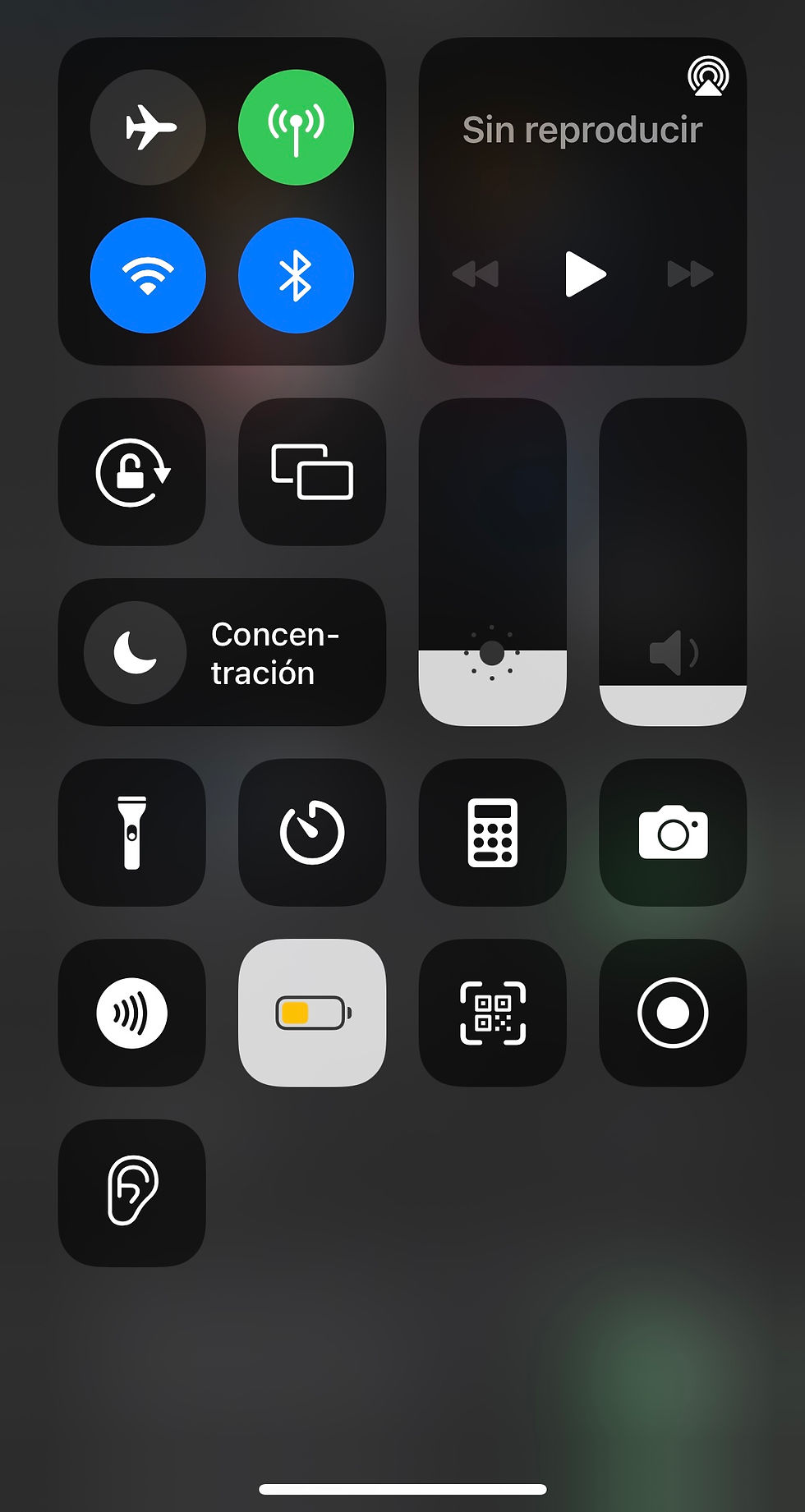
Choose the option that shows a little sun and slide untilconformsm with the brightness.
How do I change my wallpaper?
I don't know about you guys, but I love customizing my phone! Setting aesthetic wallpapers, changing app's icons, decorating my phone case, etc. Giving it a personal touch. If you also enjoy customization (or simply dislike apple's wallpapers) you can change your phone wallpaper like this:
Go to the 'Settings' app.
Scroll down until you find the 'Wallpaper' option.

There, tap 'Choose a new wallpaper.
Look for the image you want to set up as your wallpaper and tap on it.
Adjust the image to your liking and tap 'set'. Choose 'Set lock screen if you want it to appear when you turn on your phone, 'Set home screen' if you want it as your home screen wallpaper, and 'Both' if you want it for both.
How do I activate 'VoiceOver'?
The VoiceOver option reads aloud the items on your screen. You will simply have to tap twice on the item you want to read to activate it. In this section, you can also choose the voice, speed, etc. Sadly, some people find this option unnecessary or annoying, but nothing further from reality because it helps lots of disabled people. To activate it:
Go to the 'Settings app.
Scroll down until you find 'Accessibility'.

Tap on 'VoiceOver' and activate it.

And that's it for today's post! I hope you found this article helpful, if you have any doubts or suggestions please leave them in the comments, and I'll answer them, so don't be shy!
Have a nice week!
Carolina Grandía Soler - 16/10/22


Comments