
Google maps, so we don't start the year lost (guide to Maps 1)
- Carolina Grandia Soler
- Jan 7, 2023
- 3 min read

Happy 2023! And welcome back to CaroAlAparato, I'm Carolina and today I'm here with a super useful article (especially if you are spending your holidays abroad). In today's post, we will learn about how to use Google Maps (the generic Maps app that comes preinstalled will also do, but this app is available for both Android and IOS, so it's more comfortable).

Google Maps

To download it, you can follow this tutorial to download apps:
And this tutorial will help you create a Google account (for Google Play, Android):
Once we enter Google Maps, we must allow it to use our location (otherwise it won't work properly). You can choose between the app only registering your position when being used or just allowing it to register once.
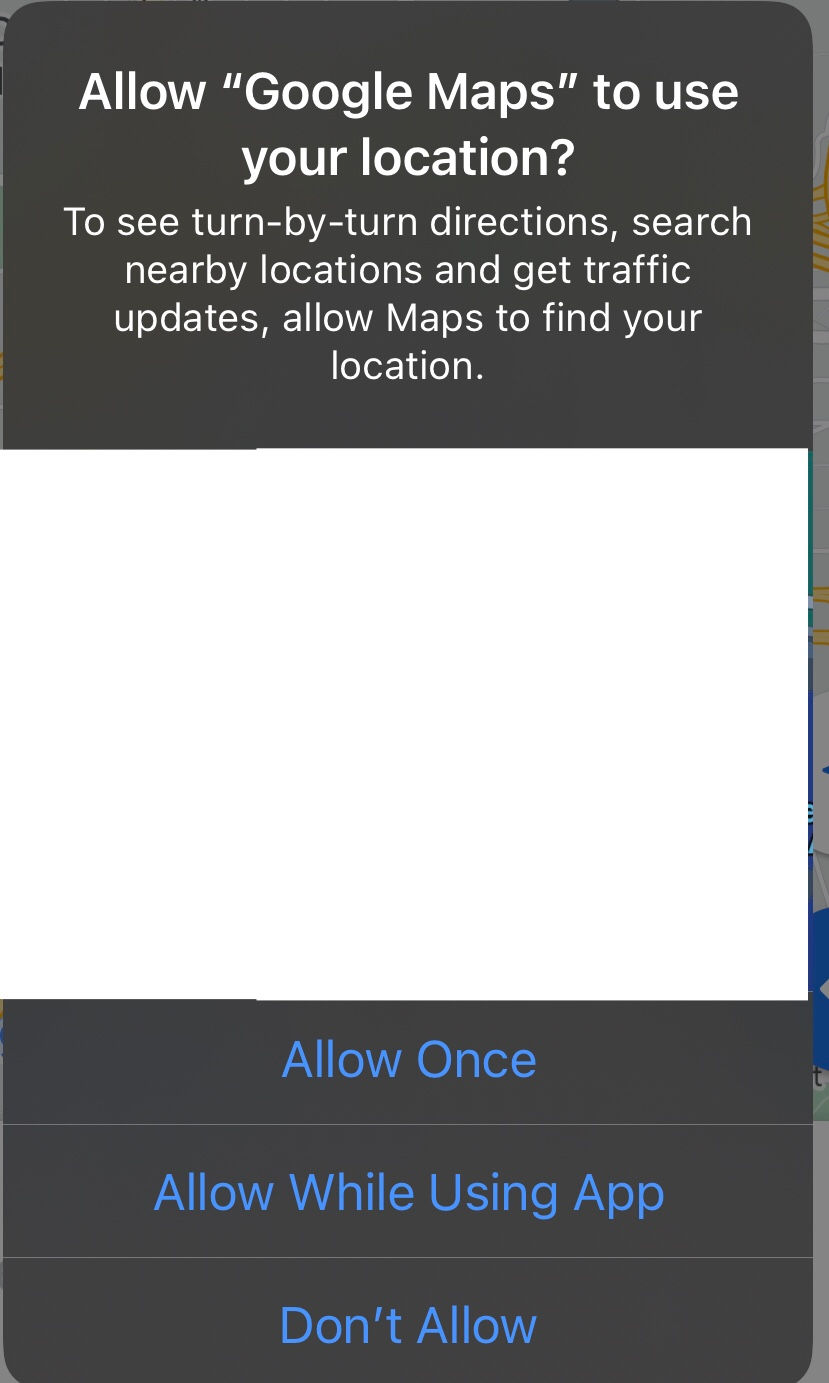
Then you will have to log in with Google (the last link should help with creating an account and logging in with it).
In the bottom part of the screen, we will find the different sections, I'll just explain the most important ones in this article though).

In the 'Explore' section, you can look for directions, inspect the map, or study different routes.
In the 'Go' section you will find your marked-as-favorites routes and some others recommended by Google.
How do I use the map?
For privacy reasons, I won't share my actual location, but these are the things to keep in mind while using the map:
Zoom in or out to see more territory.
Scroll freely through the screen to move through the map.
If you want to see a specific place, tap on its pin.
To see where you are, tap on the triangle that you will find in the bottom right corner, the pulsing blue dot shows your actual location.

How do I look for specific locations/addresses?
Simply type them in the search bar that you will find at the top part of your screen. Once you have found your destination, this menu will come up:
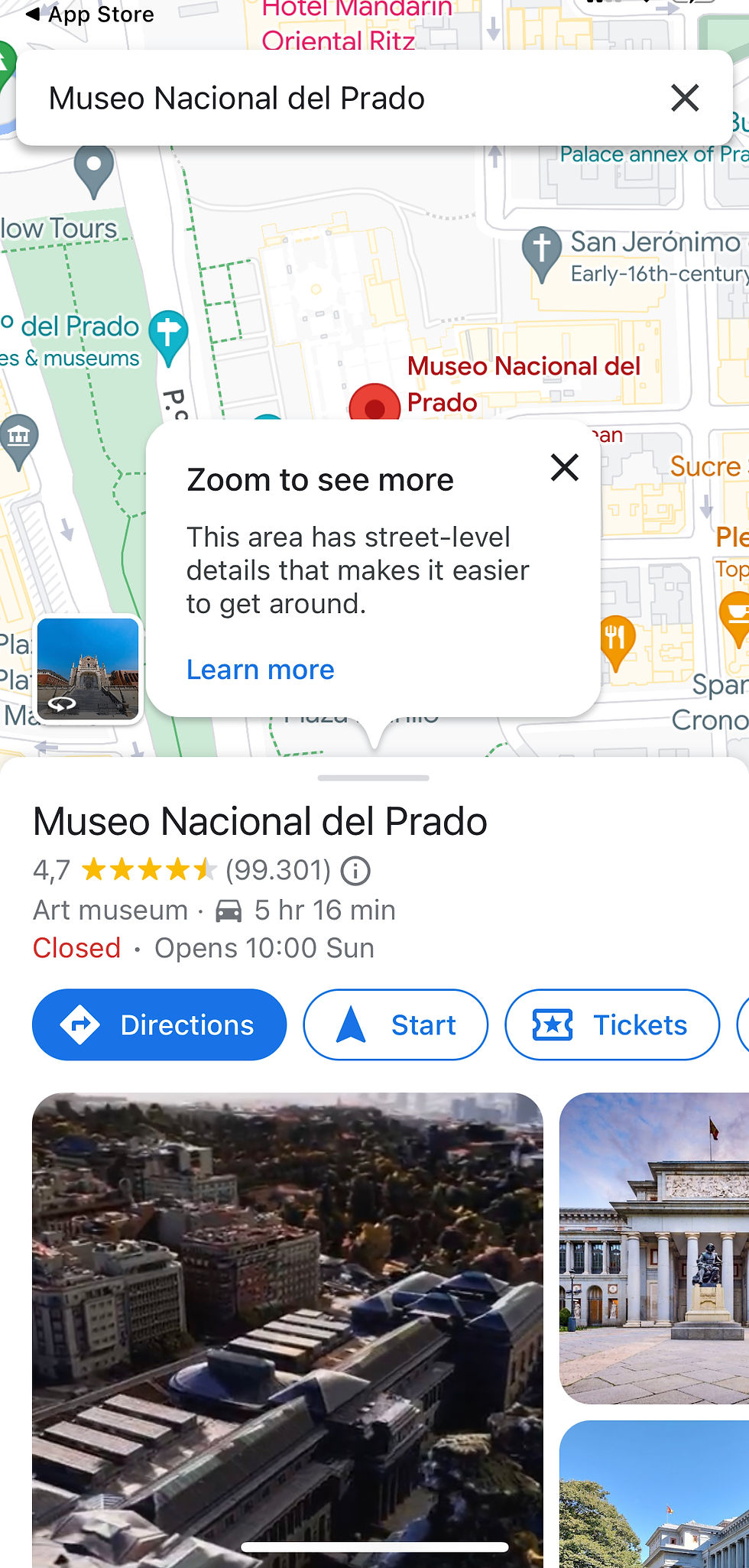
Swipe up to see all the options, which (in order) would be:
DIRECTIONS: It will display the fastest route to get to your destination. You can change the means of transport by swapping between the icons that you will find in the top part of your screen, under the introduced address:

Steps: it will show you the directions in text format.
Start: the route will start, allow notifications so this app can communicate with you even when you're not using the app. Audio will start playing, it will guide you in your route. To stop the recording, tap 'Exit' in the bottom right part of the screen. If you want to center your position on the map, tap 'Re-centre'.
Pinned: you can pin this route to save it in your 'Go' list and access it later.
START: It will start giving you the directions for the established route.
TICKETS: As I've chosen a museum for this example, you can check the availability of tickets and even book them online.
CALL: Tap it and you will call the establishment.
SAVE: You can save this address in your lists and access them later in the 'Saved' section.
SHARE: Share this location with your contacts.
WEBSITE: When clicking here, you will be sent to this place's website.
If you keep scrolling down you will find more details about the establishment: schedules, feedback, etc.
And that's all for today! I hope you guys enjoyed this post and that you found it useful. If you have any doubts, suggestions, or questions, leave them in the comments and I'll make sure to answer! With that being said, have a nice week!
See you
Carolina Grandía Soler - 03/01/23


Comments