
Guide to Google Drive (parte 1)
- Carolina Grandia Soler
- Oct 27, 2022
- 3 min read

Hello! Welcome back to CaroAlAparato! My name is Carolina and on today's menu, we have a new guide suggested by some followers. I know I still have to post the Android screen and accessibility settings blog, but we'll leave that for another week.
In this post, we are going to talk about Google Drive, how to create files, what types of files you can create, how to save them, and how to create folders. The follower that suggested this said they were using a computer, but I'll just go ahead and explain how to do all these things on your phone as well.
¿What is Google Drive?
Google Drive is a Google app, it is a cloud storage service in which you can store information and access it from any device (as long as you log into your Google account). With it, you can store, create, edit and share files, folders, and documents.
How do I access Google Drive?
COMPUTER:
Open your favorite search engine and search for 'google drive'.
Click the first link.
Now a screen like this will come up. Click 'go to Drive'.

Nos log into your Google account. If you don't have one, follow this tutorial: https://caroalaparato.wixsite.com/caroalaparato/en/post/creating-a-google-account-and-everything-that-you-can-do-with-it
Something like this should appear on your screen. Perhaps you will find some files on your Drive, this is because you have already downloaded something or someone has shared a document with you.

MOBILE:
You can either access Google Drive through a search engine or download the app. If you want to download the app, you can follow this tutorial: https://caroalaparato.wixsite.com/caroalaparato/en/post/downloading-apps-where-to-find-them-and-how-to-delete-them
I'm going to use the Google Drive app.
Go to the Google Drive app.
Log in with your Google account, if you don't have one follow this tutorial: https://caroalaparato.wixsite.com/caroalaparato/en/post/creating-a-google-account-and-everything-that-you-can-do-with-it

(It's in Spanish, but the text is irrelevant here, so it's fine). You will find something like this unless someone has shared any documents with you or you have already downloaded something, in that case, they will appear here.
How do I create files?
COMPUTER:
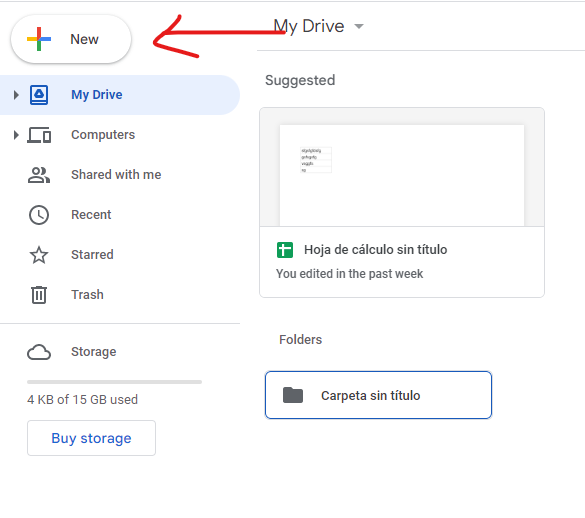
Click on the '+' that will appear in your top left corner.
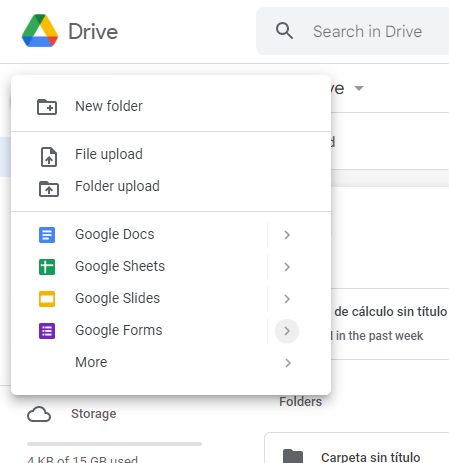
Something like this will come up, click on the type of file that you want to create (they are explained in our Google post, but, in short, the first options are: a 'word' document, an 'excel' document, a 'powerpoint' or slide presentation document or a google forms.
Now write and edit your document.
MOBILE:
Tap on the '+' you will find in the bottom right corner of your screen.
Something like this will come up, click on the type of file that you want to create (they are explained in our Google post, but, in short, the first options are: a 'word' document, an 'excel' document, a 'PowerPoint' or slide presentation document or a google forms.

Now write and edit your document. You must download Google's apps to do that though.
How do I save documents?
Google Drive saves your progress and files automatically, so you don't have to panic whenever you forget to save a document manually.
To organize your files better, you can save them in folders.
¿Cómo creo carpetas?
BOTH:
Tap on the '+' from before and choose 'new folder'.
Name the folder.
Now, it should come up on your Google Drive.
To create a file and save it in a folder you can:
Go to said folder and create the file while inside the folder.
Drag the file over the folder.
If you click on the folder (or go to the file section and tap on the dots beside the folder's name, if you're using your phone) you will be able to edit the folder and some other things.

To open that folder in another app.
You will be able to share the folder with other Google users or copy the link to share the folder wherever you want.
Same as 2.
To see the folder's location (useful when you're dealing with a lot of documents).
Create direct access to Drive (this will appear on the menu where 'My Drive' is).
To move the folder.
Add the folder to some sort of 'starred' section, where all the files you mark as such will appear.
Change name.
Change the folder's color (my favorite option).
Look for files and folders inside that folder.
View that folder's details.
Download folder.
Delete folder.
And that's it for today's post! I've been pretty busy this week, so this post is a bit shorter, but if you find this guide interesting I'll post more parts to it soon!
By the way, next week I'll post about some of the most frightening stuff you can find on nowadays technologies because it's Halloween!
I hope you guys liked it.
Bye!
Carolina Grandía Soler- 23-10-2022


Comments