
How to scan documents with your phone
- Carolina Grandia Soler
- Dec 9, 2022
- 2 min read

Hi, welcome back to CaroAlAparato! I'm Carolina and today I'm going to explain to you a very handy feature: scanning documents with your phone. This is going to be really helpful for pretty much any digital administrative/sign-up process.

¿Which app can I use?
There are loads of apps to scan documents using your phone, my favorite one is 'Adobe Scan', you can look up 'Adobe Scan' in the App Store/ Google Play to download it, you can follow this tutorial to download apps:
And this tutorial will help you create a Google account (for Google Play, Android):
Adobe Scan

Once you first open the app:
We will find the login screen, here you can choose whether you want to log in with a Google/Facebook/Apple/Adobe account (you can create one on this same screen). Choose the option you find the most comfortable (if you choose Google, the previous link will guide you in the creation of an account and the login).

Then we will have to create an Adobe account or log in with one (if we already have one). I don't have an account, so I'm going to create a new one:
Fill out the form with your name, surname, birth date, and country.
Tap 'continue'.
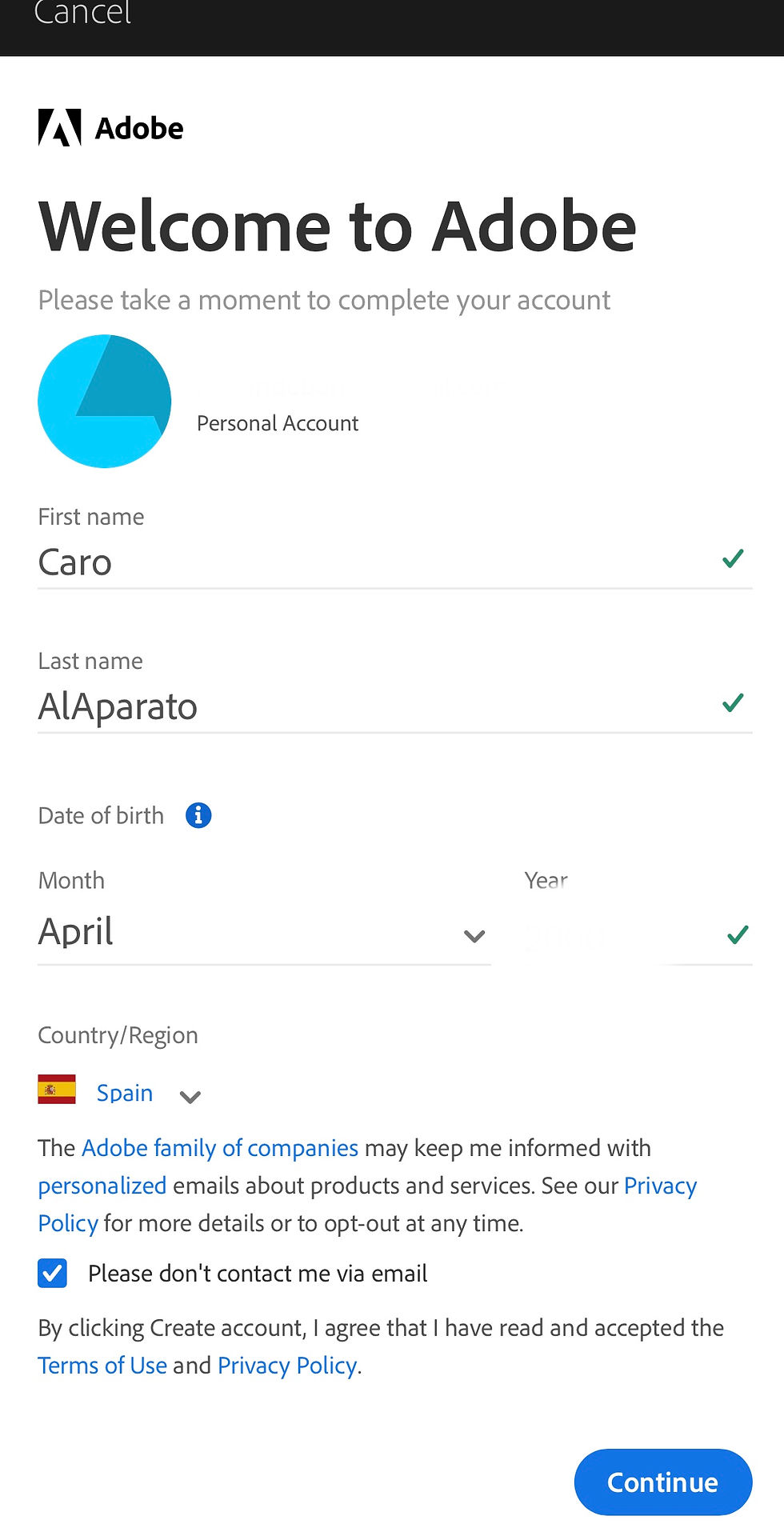
Now we will be welcomed to Adobe Scan. Tap 'start'.

Allow them to have access to your camera. Then reject/accept the notifications, depending on what you want.
In the bottom part of your screen, you will find numerous types of documents, choose the one you prefer. Now we can scan the document. Tap on the white circle (just like if you were to take a picture) to scan it.

Once the picture is taken, you will find a screen where you can adjust the document's borders. Once you do so, tap 'Continue'. If you dislike the result, tap 'Retake'.

Once we have scanned all the documents, tap on the image in the bottom right corner.

Here you can edit the document, add filters, 'clean' the doc, etc. Once you are finished, name the file (tap on the pencil that will appear next to the file's name to do so).

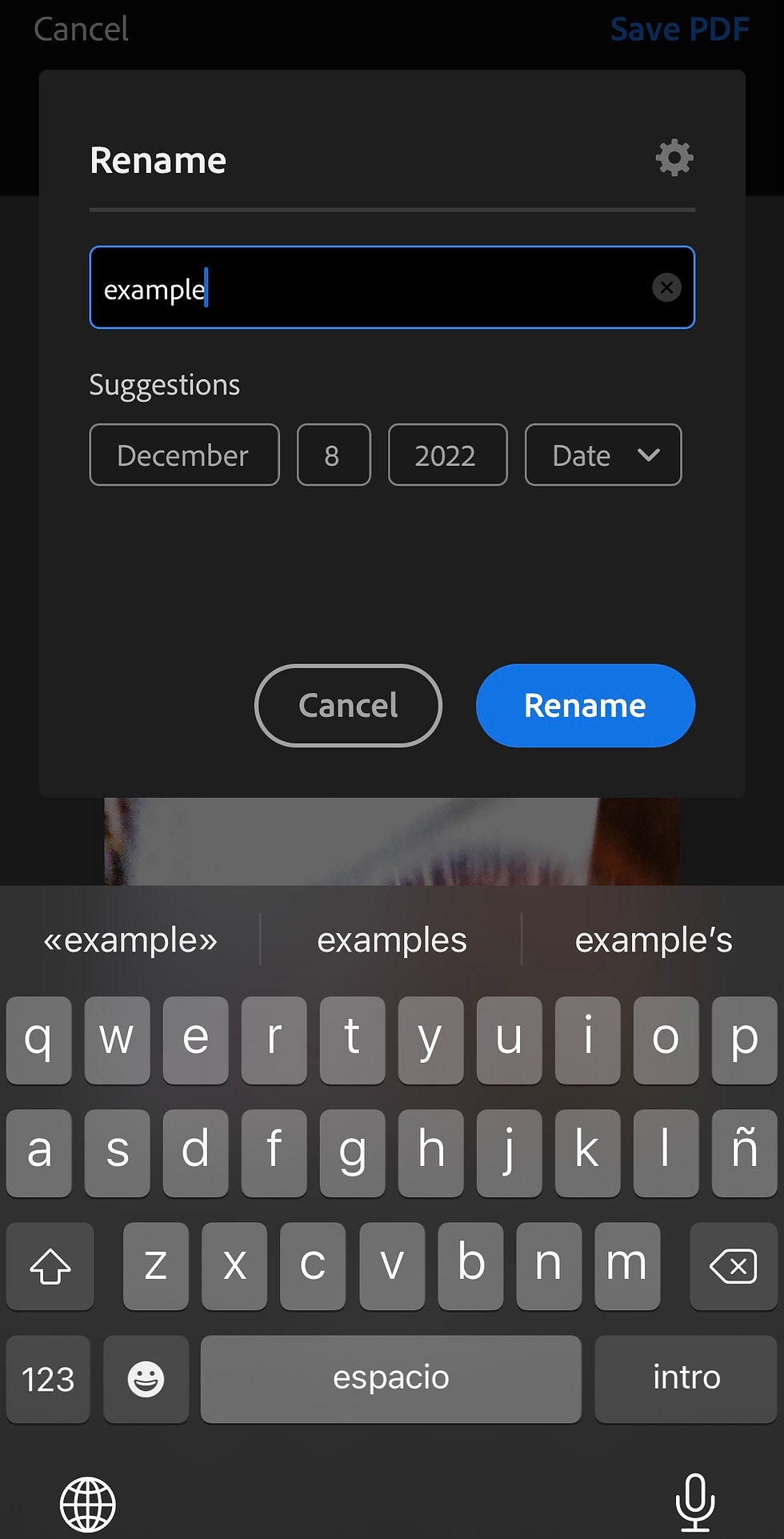
Then tap 'Save PDF'.

Now that you have the document scanned, we can share it and save it as a copy on our device. To do so:
Go to the home screen and tap 'Share' on the desired document.
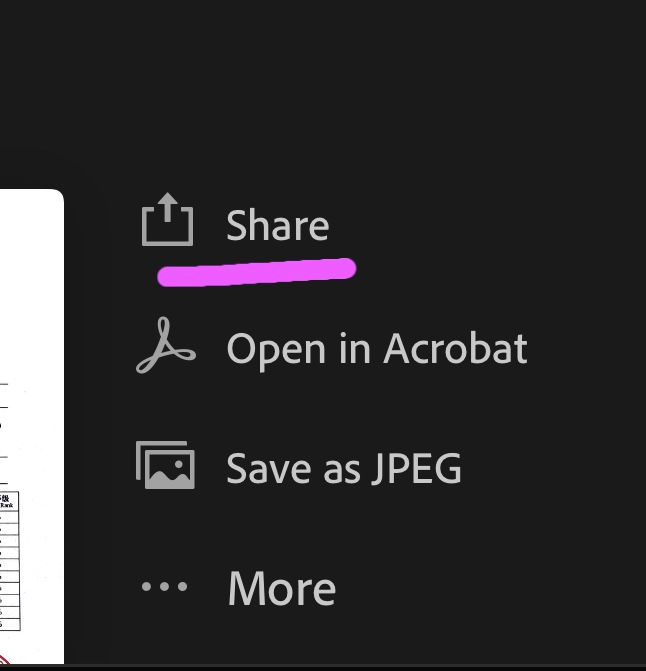
Then choose 'Share a copy'.

Select which app you want to share it through and send it.
And that would be it! I hope you guys found this article helpful because knowing how to scan and send documents is no trifling matter, as most online administrative processes require it. As always, if you have any doubts, questions, or suggestions don't hesitate to leave them in the comments, I'll answer them as soon as possible. Have a nice rest of the week!
Bye!
Carolina Grandía Soler - 26/11/22


Comments