
How to turn your phone into a radio (well, not exactly...)
- Carolina Grandia Soler
- Nov 24, 2022
- 3 min read

Welcome back to CaroAlAparato! I'm Carolina and this week I'm here with an article in which I will explain how to listen to the radio using your phone (this was a petition from my most loyal follower, my grandma). I believe the radio is a very practical means of communication, as you can listen to it while doing other stuff: cleaning, driving or cooking, without the need to pay attention to a screen. Plus, it is great company for some people, and having breakfast with it playing in the background is another part of their routine. As a proper means of communication, it keeps us informed, something which I consider to be pretty important, so let's jump straight to today's post.

How do I set the radio on my phone?
The most comfortable way to listen to the radio (at least for me) is by downloading a radio FM app. Some phones already have one included, but if yours hasn't, you can download one by searching 'Radio FM' in the App Store/Google Play, here I will leave the link to a tutorial you can follow to download apps:
And here you have another one to create an account for Google Play (Android):
As there are hundreds of radio apps, not all of them will work the same way, I have downloaded 'myTuner Radio' to try it out and show you how it works.
Another way you can listen to the radio on your phone is by visiting the web of the radio station you want to listen to. There you will find a 'Live' section, by clicking there you will be able to listen to it live. To stop the playing of the radio just pause it.

The left symbol is for playing the content, and the right one is for pausing it.
myTuner Radio

Once installed:
We will be asked to allow the app to track our activity across other companies' apps and websites. Please, choose 'Ask App Not to Track', you don't want them to know that much about you.
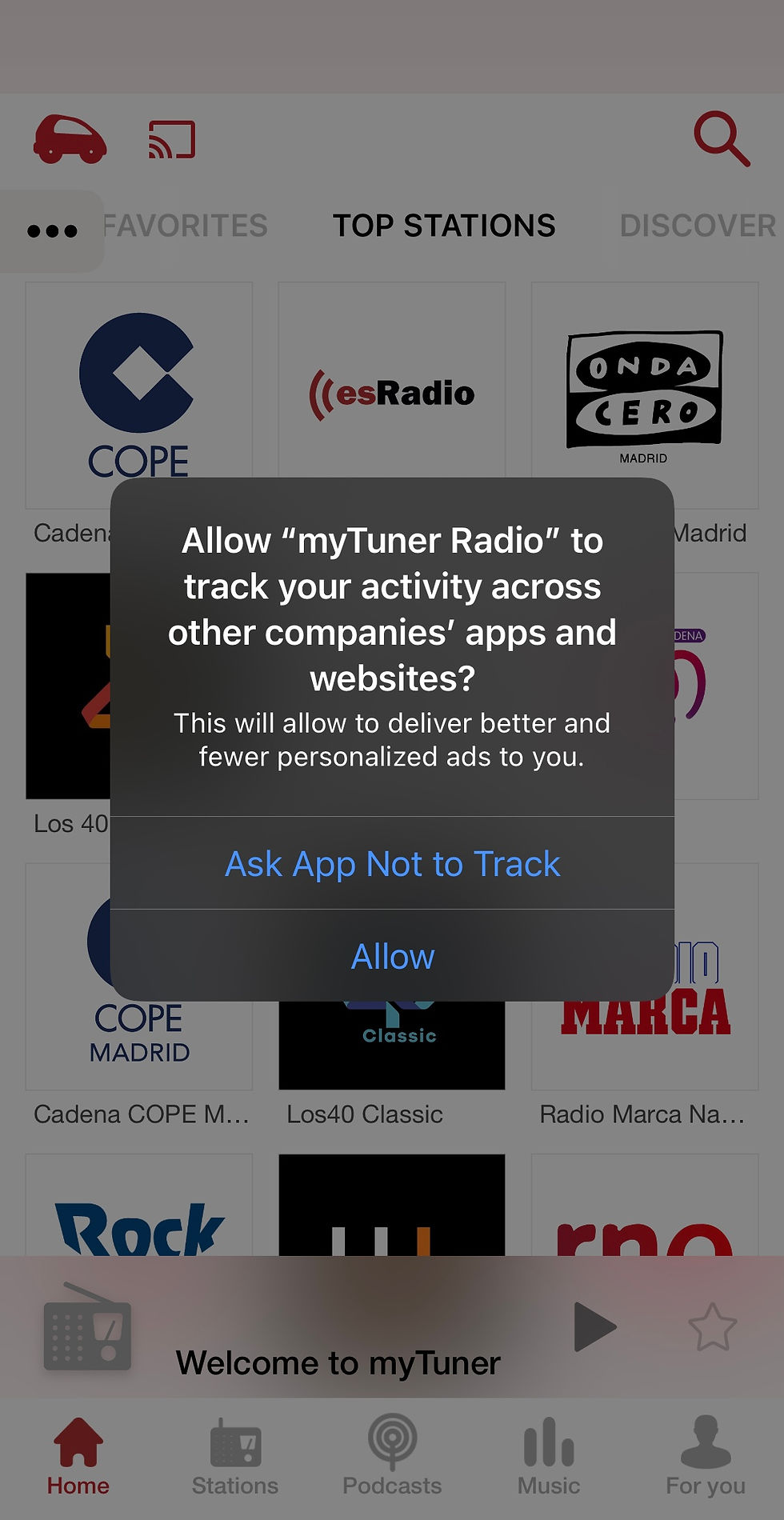
Then we have the home screen.
On the bottom of the screen, we can find the sections 'Home', 'Stations', 'Podcasts', 'Music,' and 'For you'.

On the top, we will find the premium feature (which isn't free as you might guess), and most importantly, the search option. Here you will be able to search radio stations by their name and frequency.

In the 'Home' section we can find some radio stations, and we can swipe and explore various sections, such as discover, recommended, etc.
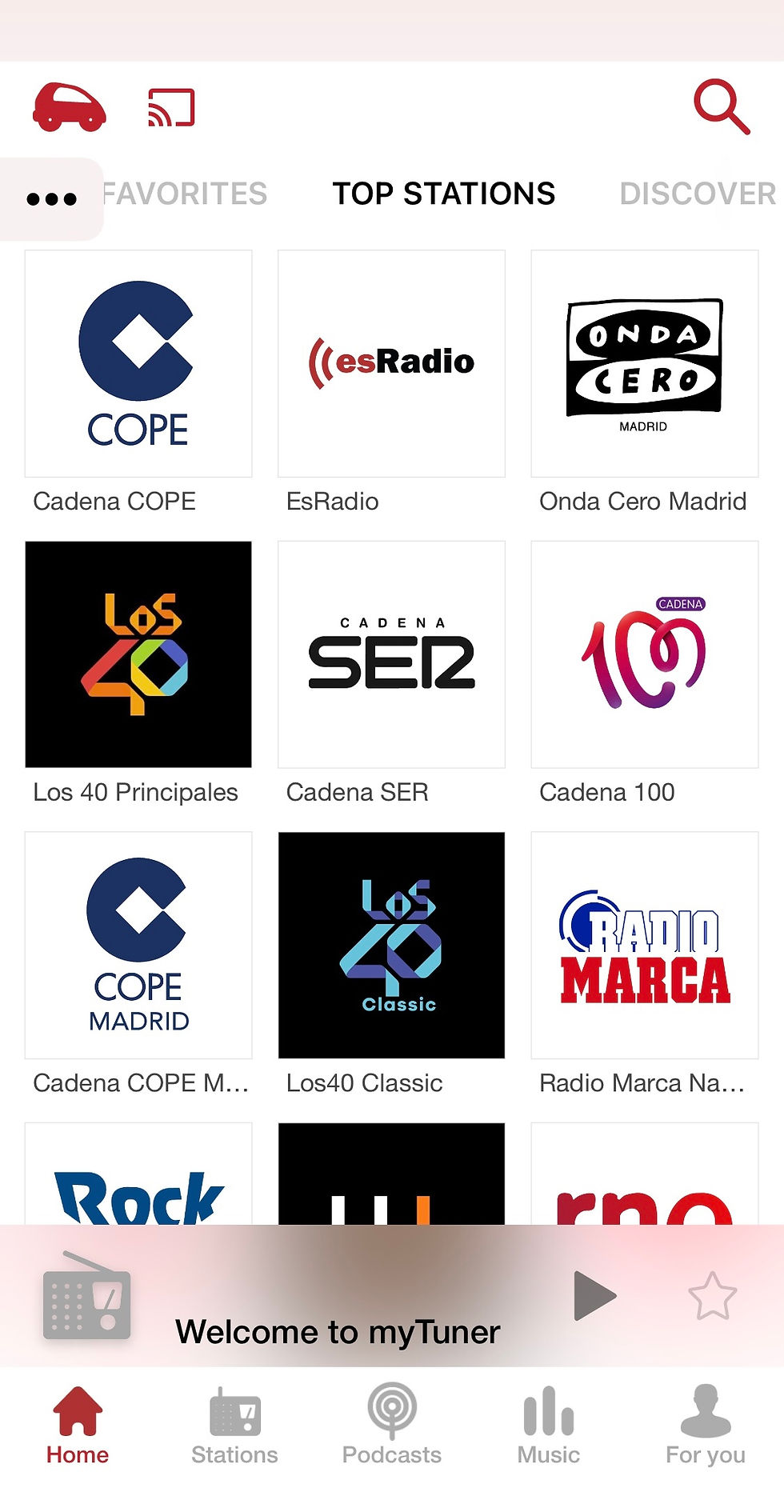
To listen to one of these radio stations, tap on them. I tapped Los40Classic, and this came up at the bottom of my screen. To pause this radio, tap the 'pause' symbol, to play it again, tap on the 'play' symbol. To add this station to your 'favorites 'section, tap on the star (it must be filled).

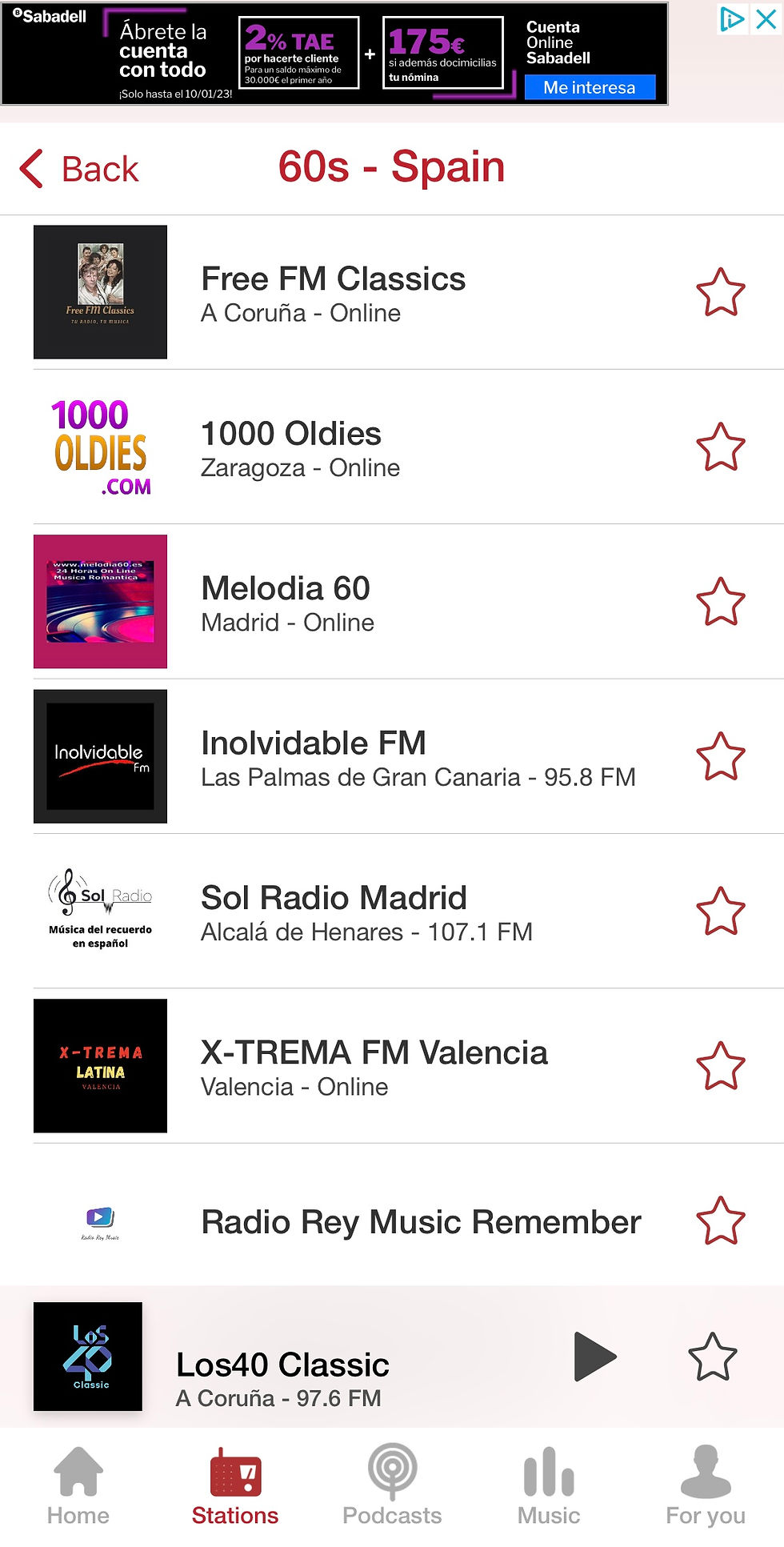
In the 'Stations' section, we will be able to search stations by genre, city, country, etc. Just tap on whatever filter you want until you find the perfect radio station for you!


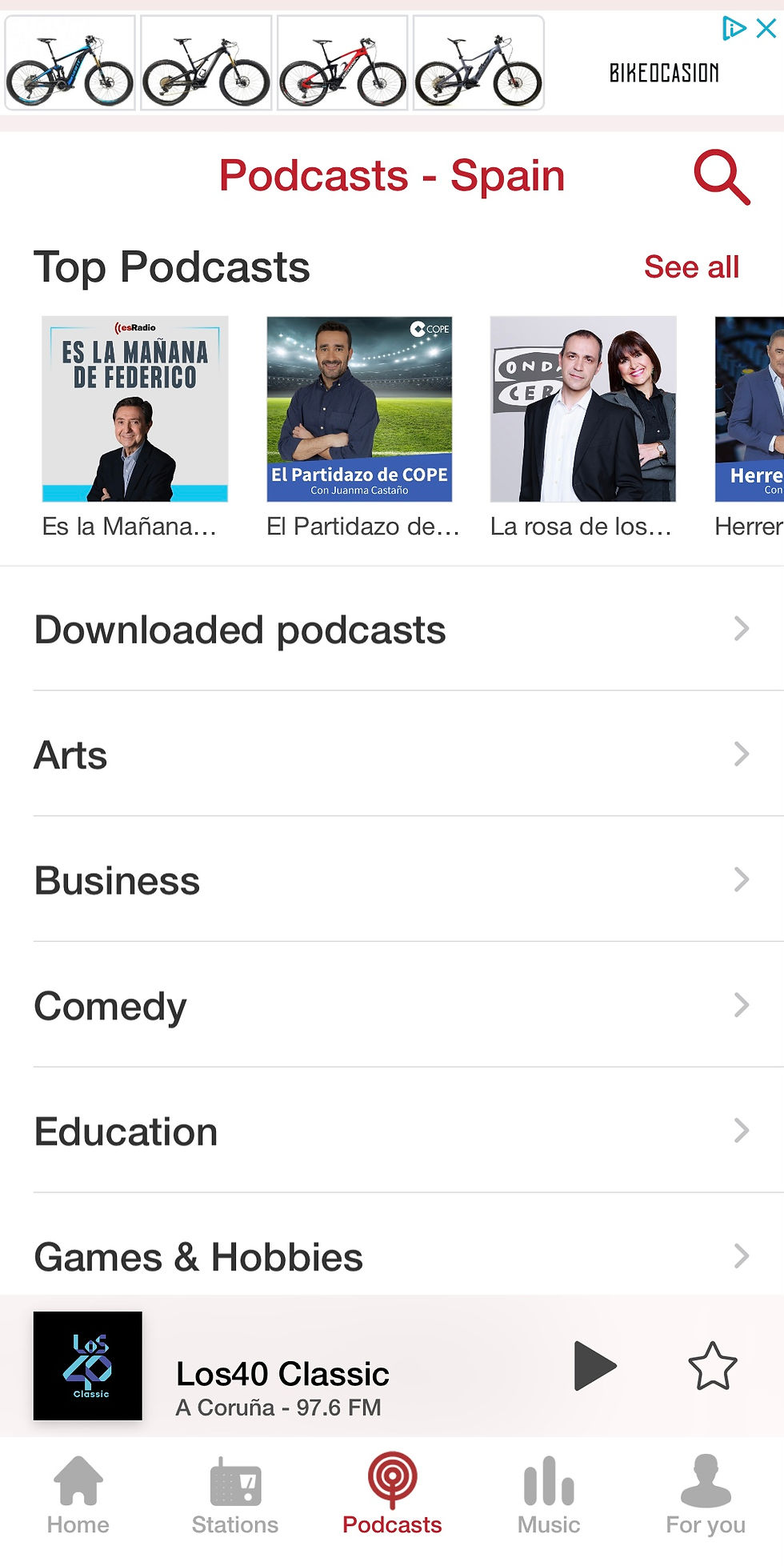
In the 'Podcasts' section, we can find a huge variety of podcasts by topic, just as before, tap on whatever topic you like until you find the podcast you want. By the way, would you like to see a CaroAlAparato podcast?
In the 'Music' section we can find all types of songs based on their chart positions, most played songs on the radio, etc. You can also create playlists by linking this app to your Spotify/ Apple Music account.

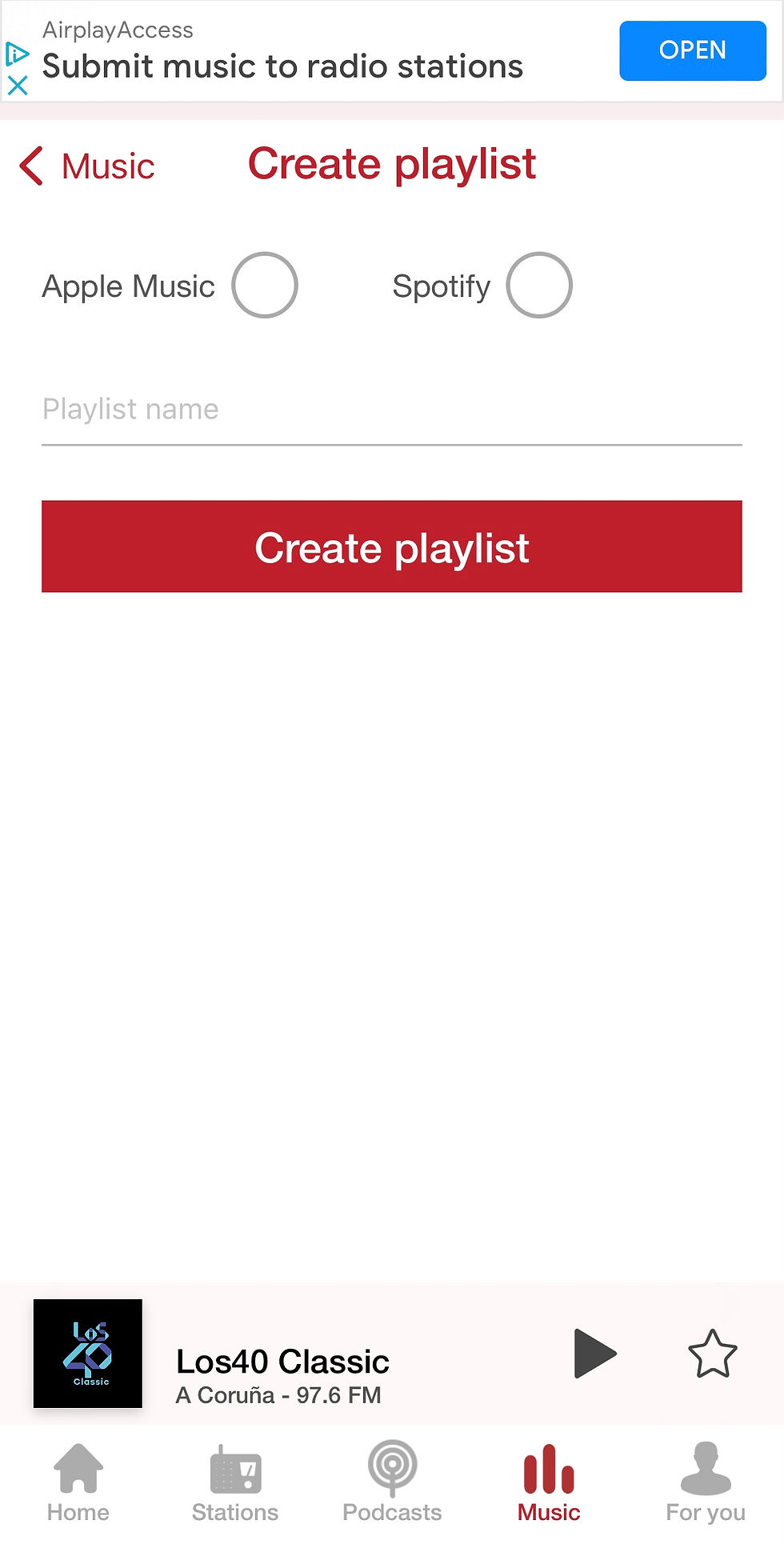
In the 'For you' section we can find the stations/podcasts/ songs we marked as favorites, we can change our country preferences and some basic configuration options.

You will be able to listen to the radio even when you're not in the app. To pause the playing, go back to the app and follow the previously stated steps
Oh, by the way, if any ad pops up, don't just randomly tap on the screen. Wait for the established ad time (if there is any) and then tap 'x' or 'close', whatever comes up.
And that's it for today's post! I hope you guys found this helpful and I hope it cleared up any doubts you might have. It's really important to keep ourselves informed, especially nowadays, when everything happens every day! As you have seen, any doubt or suggestion is catered, so don't hesitate to ask questions in the comments!
Have a nice week!
Carolina Grandía Soler - 20/11/22


Comments