
Reading books on your phone (Play Books Android edition)
- Carolina Grandia Soler
- Jan 29, 2023
- 3 min read

Welcome back to CaroAlAparato, I'm Carolina! This week we're here with the Android version of our latest article. With the app we're going to explain to you today you will be able to read books on your phone, as if it were an ebook.

What app can I use?
In Google Play we can find the 'Play Books' app, although there are more ebook apps, this one is free.
In this post I will explain how it works.
If you aren't very familiar with Google Play you can follow this tutorial to download apps:
To use 'Play Books' you will need a Google account, so here you have an article where we explain how to create one and we talk about what you can do with it:
Play Books
Once we enter the app, we will find this menu:
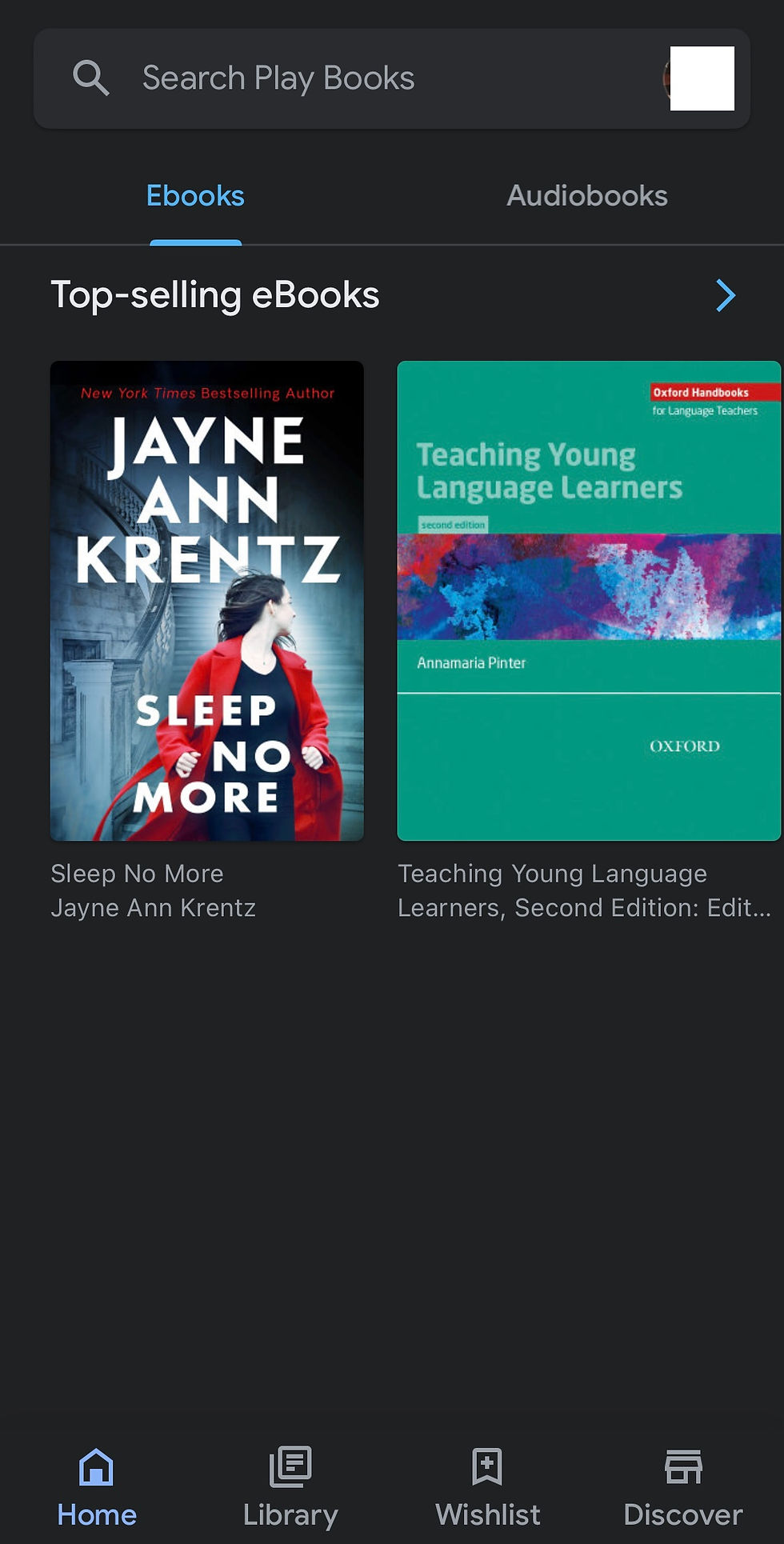
In the bottom part of the screen we can see:

HOME: Here you can explore different books and audiobooks available on Google Play.
LIBRARY: Here you can see the books you have downloaded/bought and create 'shelves' (collections of books).
WISHLIST: Here you can find all the books you added to your wishlist, you can classify them by price, language, etc.
DISCOVER: Here you can buy and download books and audiobooks.
How do I read a book?
Before reading a book we must download/buy it (some are free, but most of the books are not). To do so:
Go to the 'shop' section and tap on the bar at the top, where it says 'Search in Play Books'.
Once you have found the book, press on it.Una vez encontrado el libro, pulsa sobre él.
Now you can. add it to your wishlist, read a free sample or download it. If you read 'Get for 0€', the book/audiobook is free, if a price is displayed, it is not.
To add it to your 'wishlist', tap on the symbol that you will find at the top of your screen, next to the three little dots.

Tap 'Get for 0€' or the price (if it isn't free) and then confirm the purchase/download. You might have to enter your bank account details if the book has to be purchased and you don't have your credit card linked to your Google account.
Now it will appear on your library. Go there.
On the 'Library' section, tap on 'Your books', look for the one you want to read and tap on it.
To add it to a 'shelve', tap on the three dots that will come up next to the book's name, then tap 'Add to the shelve', followed by the shelve you want to add it to.
Et voilà!
To move around the book, swipe to the left to advance and to the right to go back.
Finally, to mark with a bookmark the page you are reading, tap on the page and, on the menu that will come up, tap on the symbol you will find in the top right corner. Then tap 'Add bookmark' (the fourth option).
To get out of the book, tap on the arrow that you will find on the top left corner.
(The video is in Spanish, but it doesn't affect the explanation much).
For audiobooks:
Tap on the book to start playing it.
You can pause the audiobook by pressing the pause symbol and resume it by pressing play.
To go forth/back 30 seconds, tap on their respective buttons (advance: right, go back: left).
You won't need any bookmark here, as the app will register where you left the audio.
In the bottom left corner you can adjust the playing speed.
In the clock on the other side you can program your phone so it turns off in 15-60 minutes or when the current audio ends (really useful to save battery if you like to listen to audiobooks before going to bed).
Tap on the arrow you will find in the top corner to go back to the screen.
(The video is in Spanish, but it doesn't affect the instructions, as you have to tap symbols).
And that's it for today! This post is very similar to last week's, because I wanted to show you the same features to both Android and Apple users. I hope you guys liked this post and found it useful! Please, if you have any question or suggestion, comment it! Have a nice week!
Bye!
Carolina Grandía Soler - 15/01/23


Comments